Deactivation and Removal of User Profiles
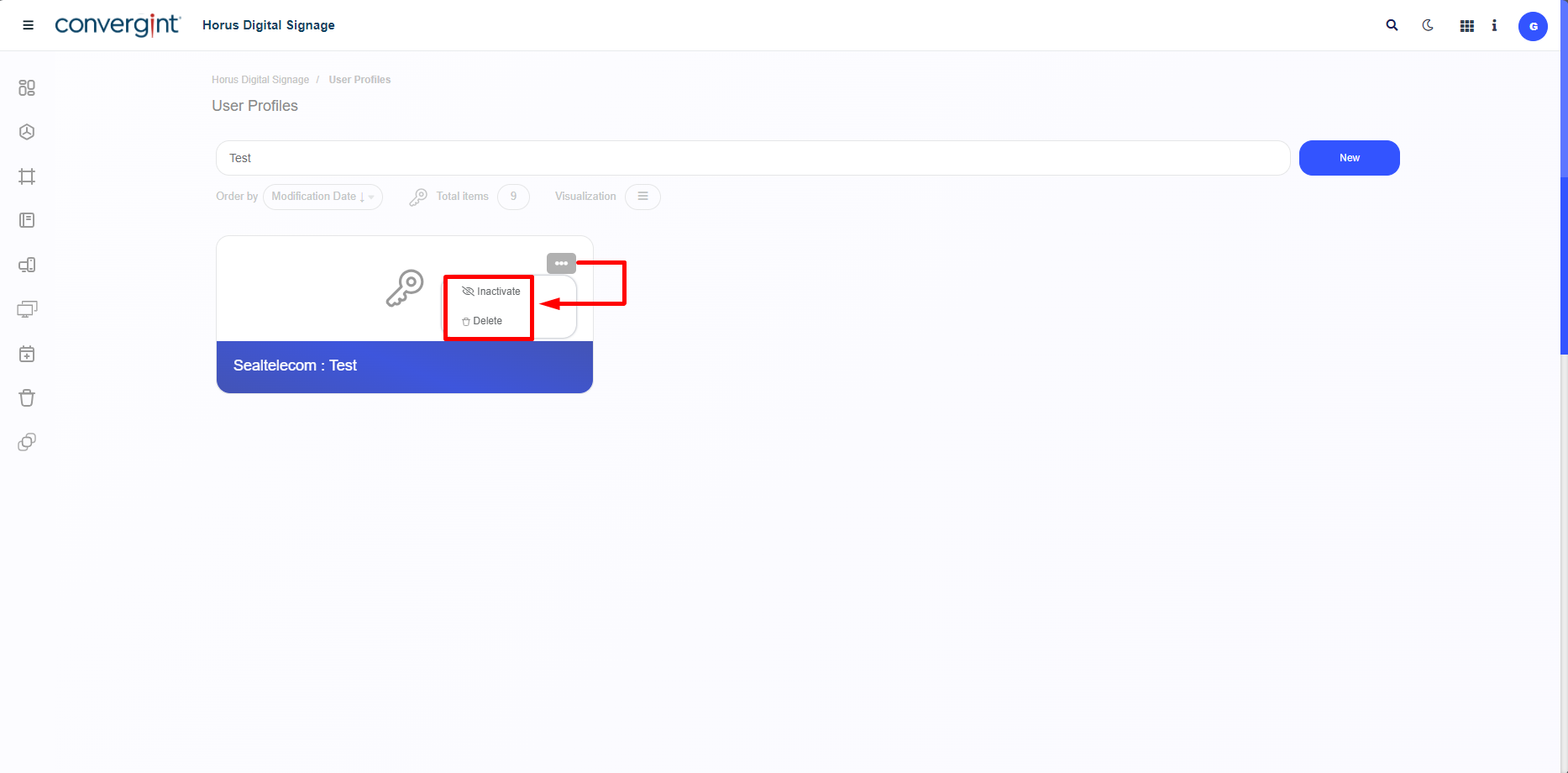
To deactivate or remove User Profiles, it is necessary to access the "User Profiles" section and click on the "More Options" icon next to the User Profile you wish to deactivate or remove.

Upon clicking the icon, the system will present the options "Inactivate" and "Delete." Each of these options will have its respective functionalities, and by selecting one, the system will perform the relevant action as specified for each option.
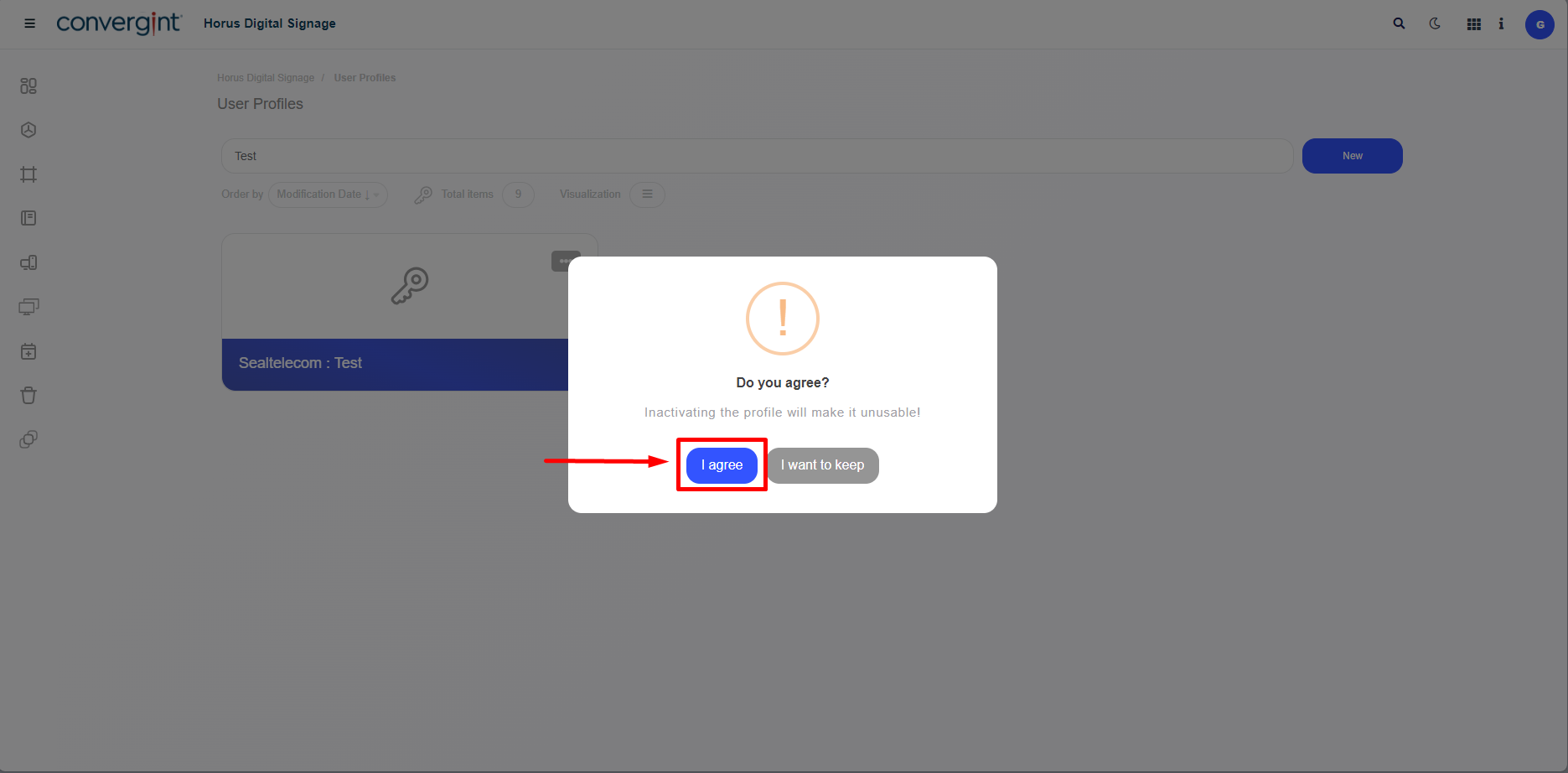
Selecting one of these options will prompt the system to display a pop-up requesting confirmation for the deactivation or removal of the chosen User Profile. To proceed with confirming your selected option, simply click "I Agree." Remember that regardless of whether you choose to "Inactivate" or "Delete," the system will request confirmation through a pop-up for both actions.
By clicking "I Agree," the User Profile will be deactivated or removed (highlighted).
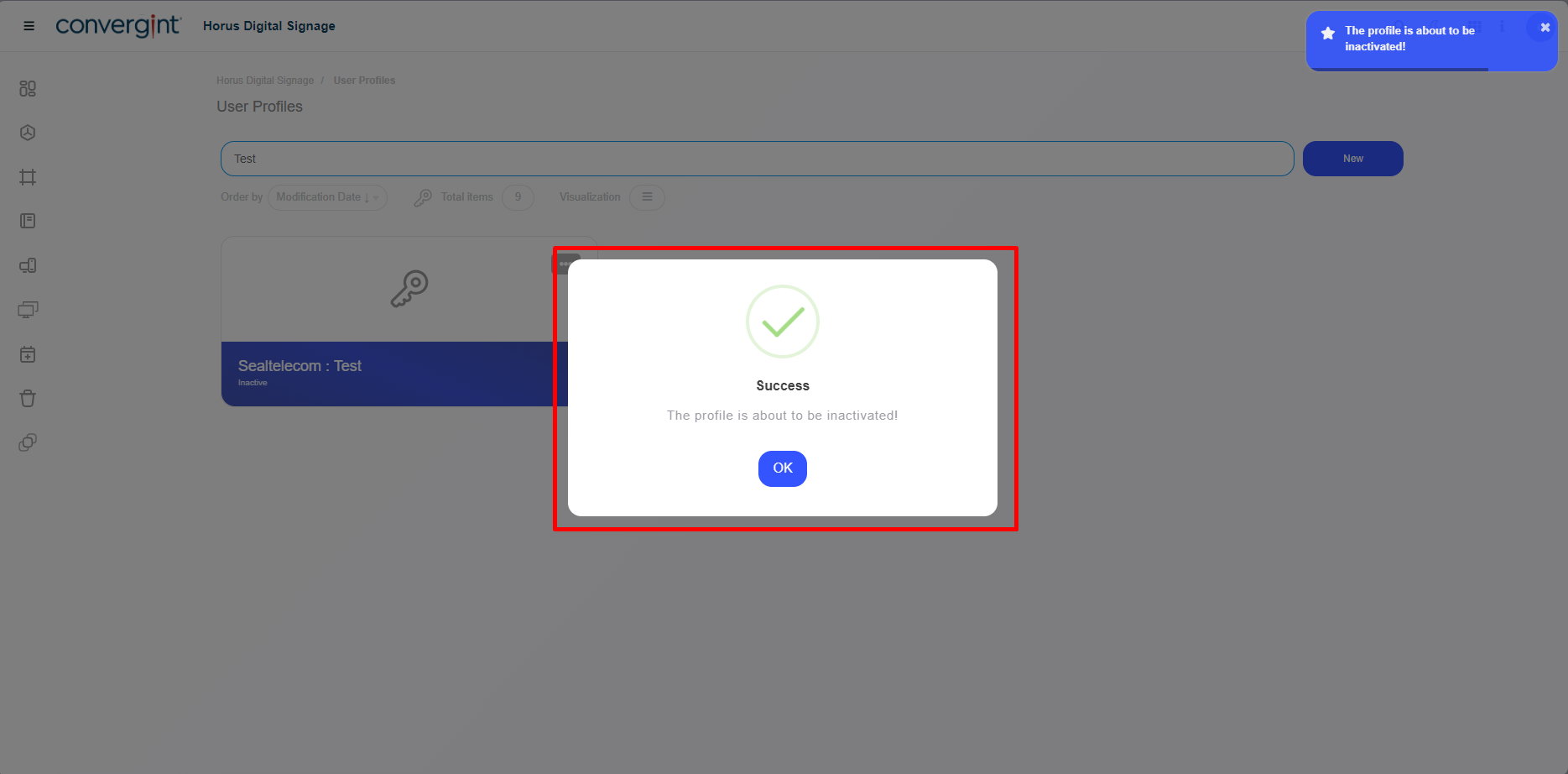
Note: If you want to activate the User Profile, just follow the same procedure as before.